
Setting Up Microsoft Family Safety on Windows 11Cài Đặt Microsoft Family Safety Trên Windows 11
Open Family Safety, create a family group, link your child's account to the PC and confirm from your own device.Mở Family Safety, tạo nhóm gia đình, liên kết tài khoản của con với máy tính và xác nhận từ thiết bị của bạn.
What Family Safety does
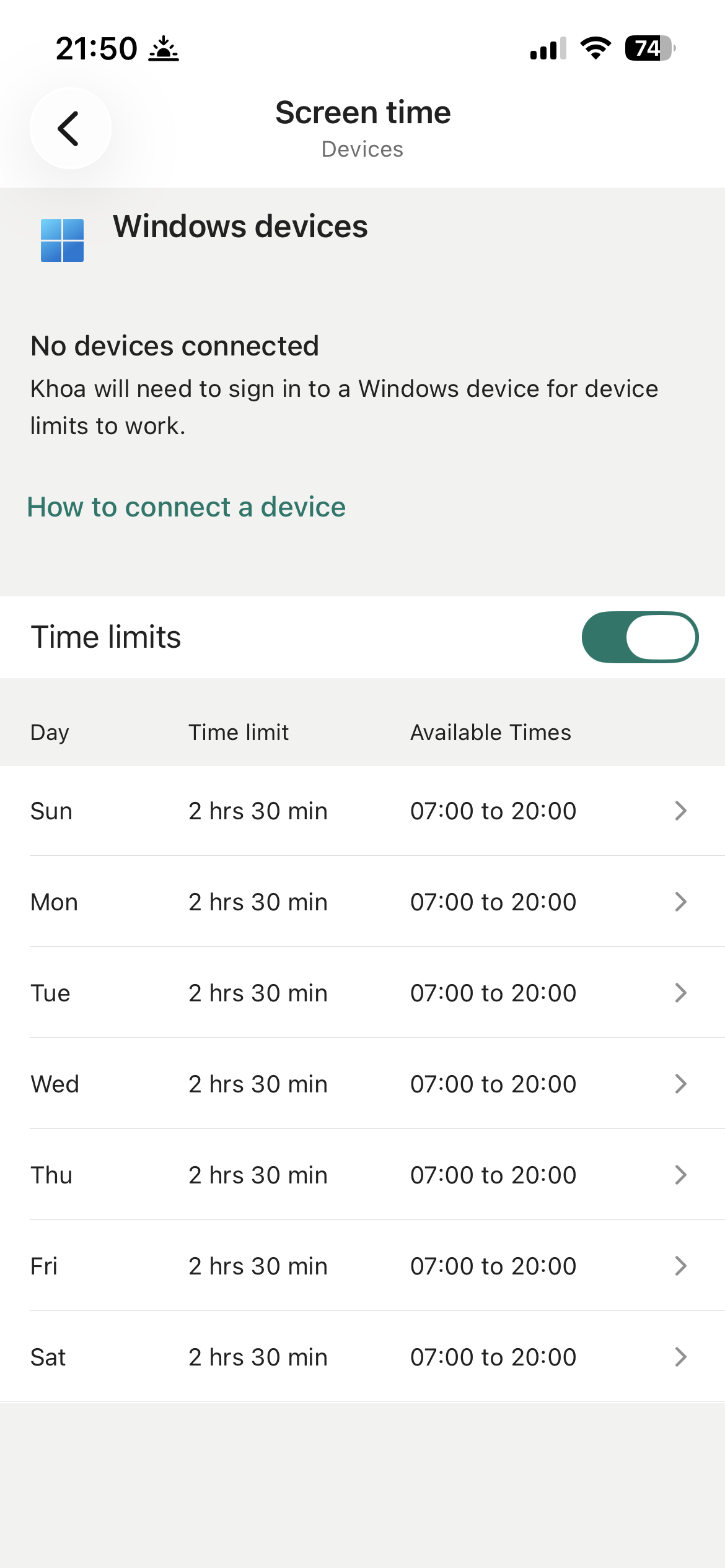
Microsoft Family Safety lets a parent manage a child's Windows 11 PC remotely: screen time limits, app/game restrictions, content filtering and activity reports, all from the Family Safety app or account.microsoft.com.
Step 1 — Open Family Safety settings
On the Windows 11 PC, go to Settings > Accounts > Family, or open the Family Safety app and sign in with your Microsoft account.

Step 2 — Create or open your family group
If you don't already have one, create a family group and add family members by their email address. Each child needs their own Microsoft account.
Step 3 — Link the child's account to the PC
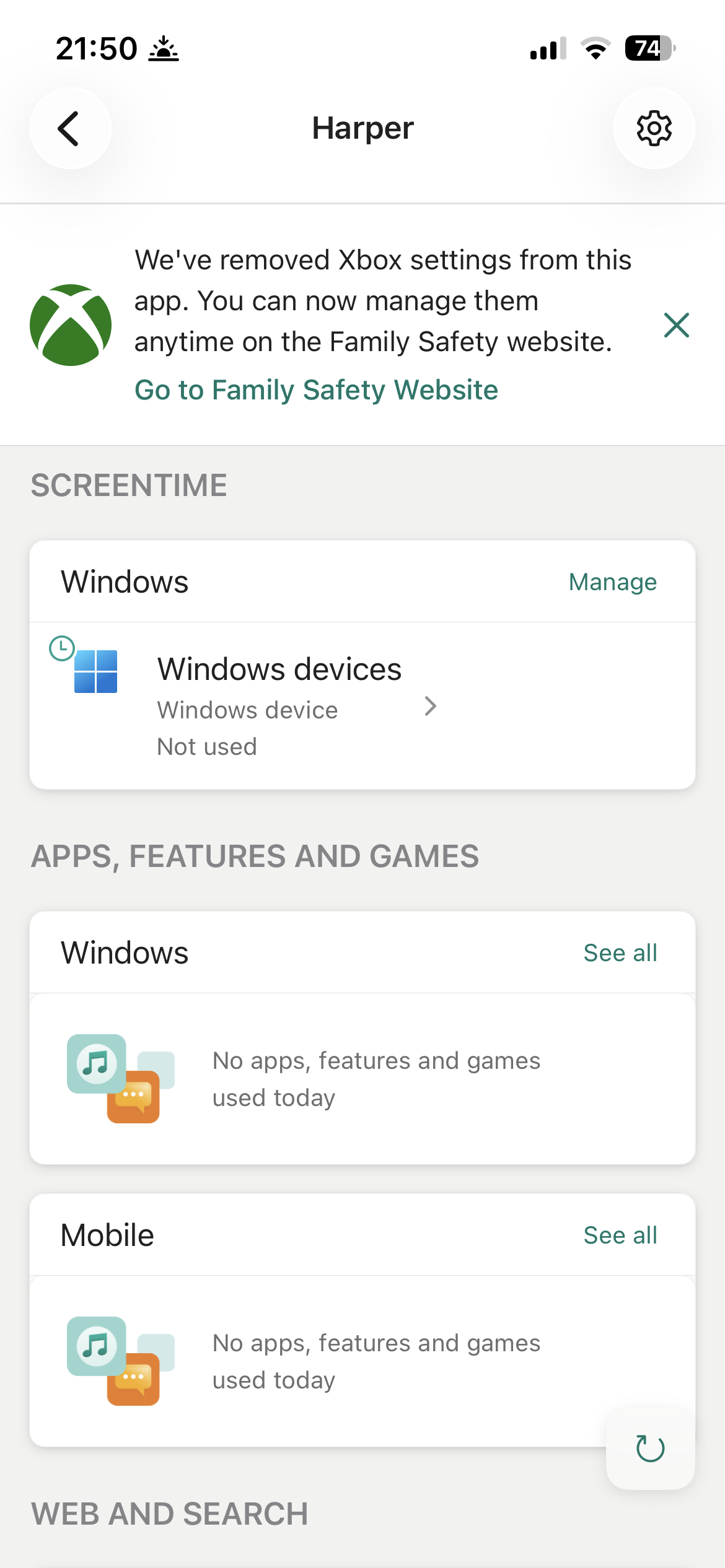
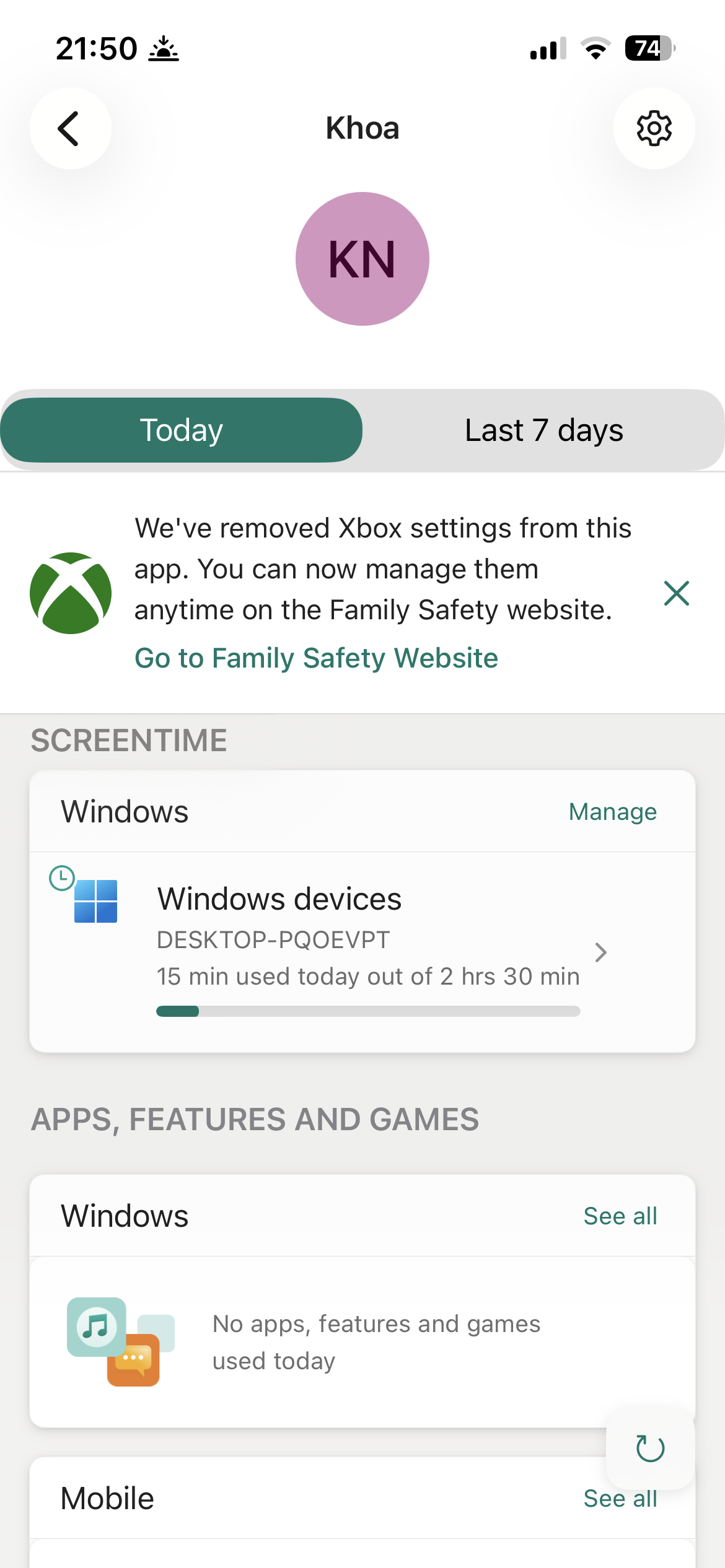
Add the child's Microsoft account as a user on the Windows 11 PC (Settings > Accounts > Family > Add account). Once added, Family Safety settings automatically apply whenever that account signs in.
Step 4 — Confirm from the parent side
From your own device or account.microsoft.com/family, you should now see the child's PC listed. You can manage everything from there without touching the child's PC directly.
Family Safety làm được gì
Microsoft Family Safety cho phép phụ huynh quản lý từ xa máy tính Windows 11 của con: giới hạn thời gian sử dụng, hạn chế ứng dụng/trò chơi, lọc nội dung và xem báo cáo hoạt động, tất cả từ ứng dụng Family Safety hoặc account.microsoft.com.
Bước 1 — Mở cài đặt Family Safety
Trên máy Windows 11, vào Settings > Accounts > Family, hoặc mở ứng dụng Family Safety và đăng nhập bằng tài khoản Microsoft của bạn.
Bước 2 — Tạo hoặc mở nhóm gia đình
Nếu chưa có, hãy tạo một nhóm gia đình và thêm thành viên bằng địa chỉ email. Mỗi trẻ cần có tài khoản Microsoft riêng.
Bước 3 — Liên kết tài khoản của con với máy tính
Thêm tài khoản Microsoft của con làm người dùng trên máy Windows 11 (Settings > Accounts > Family > Add account). Sau khi thêm, cài đặt Family Safety sẽ tự động áp dụng mỗi khi tài khoản đó đăng nhập.
Bước 4 — Xác nhận từ phía phụ huynh
Từ thiết bị của bạn hoặc account.microsoft.com/family, bạn sẽ thấy máy tính của con được liệt kê. Bạn có thể quản lý mọi thứ từ đó mà không cần chạm vào máy của con.
Apps handle the PC and the phone. EZTV puts the same family rules on the TV.Ứng dụng lo máy tính và điện thoại. EZTV đưa cùng bộ quy tắc gia đình lên TV.